the image workflow creates a new still from an authorized source and an editing instruction. The source provides a concrete visual starting point, while the prompt names the transformation. Exact preservation is not guaranteed, so compare the new image with the source before using it.
Image to Image workflow facts
Upload one authorized JPG, PNG, or WebP source up to 5 MB and name one visible edit. Keep the source and requested change clear, check the live model and Credit estimate, then compare the new still with the source before using it elsewhere.
| Input | Authorized source image of consenting adults and an editing prompt |
|---|---|
| Output | A new generated image guided by the source and requested edit; exact preservation is not guaranteed |
| Source image | Use the image formats and file size accepted by the selected setup; check the requirements in the form. |
| Account | Sign in before submitting a generation request |
| Free sign-up Credits | Eligible new registrations receive 25 free sign-up Credits once, subject to anti-abuse checks. Sign in to confirm the actual balance. |
| Pricing | Review the live Credit estimate before submission |
| Models | Available models and settings come from the live Catalog |
| Privacy | Inputs and Outputs are private within NSFWGens Video by default. Production media is held in private Product Media storage and served through short-lived signed URLs; retention depends on the account, generation, safety, payment, and legal lifecycle described in the Privacy Policy. Privacy Policy. |
| Safety | Use original ideas or media you have the rights and informed consent to process, and depict clearly 18+ participants only. |
Model availability and output rights
Current limitations
The live Catalog controls which models, settings, and inputs are available. Direct video continuation and some advanced workflows may be unavailable, and commercial clearance depends on the applicable plan or model terms.
Generated outputs can vary, may not be unique, and are not automatically cleared for commercial use unless a particular plan or model expressly says otherwise.
Image to Image, one focused edit. Keep the source useful.
Image to Image creates a new still from an authorized source and a focused edit instruction. Use it when the source already has the right subject or composition but needs one clear change: cleaner background separation, different light, a wardrobe color adjustment, or a more useful crop. NSFWGens Video keeps the source, model, output setup, and Credit estimate visible so you can decide before submitting. The result is a new generation; it may change details you did not name and should be reviewed before it is used elsewhere.
How to use Image to Image for a controlled edit
Treat Image to Image as a side-by-side comparison. Confirm that the source is yours or authorized, decide which feature must change, and name what should remain important. Select the live-compatible setup and read the complete Credit estimate. After completion, compare the new still with the source at full size. If the edit is successful, keep it as a reviewed asset or make a separate authorized request for motion.
- 01
Start with rights and a stable source
Use an image you created or have permission to process, with informed consent for any real person shown. Check the source for age clarity, facial details, hands, clothing boundaries, and the crop. A stable source helps you tell whether the requested edit worked instead of asking the model to solve several problems at once.
- 02
Name one transformation
State the visible change in plain language: soften the hard side light, remove a distracting background object, shift the cover-up from rose to cobalt, or create more space above the subject. Mention one feature to preserve. Save a new pose, location, and camera angle for separate comparisons so the edit has a clear target.
- 03
Compare before you pass it forward
Review the edited still beside the source for the requested change and for unintended drift. Inspect face, hands, silhouette, clothing, crop, background, text, and logos. If you want to animate the result, confirm the image is compatible and authorized, then make a separate Image to Video request with a fresh estimate.
Three Image to Image edit briefs
These examples are illustrative references for prompt planning, not guaranteed generator outputs. Each example changes one visible property while keeping the source idea recognizable. Use the pattern to write a focused edit brief and to decide what you will compare after the new image is ready.
Swipe horizontally to explore all three examples.
Separate the subject from the background
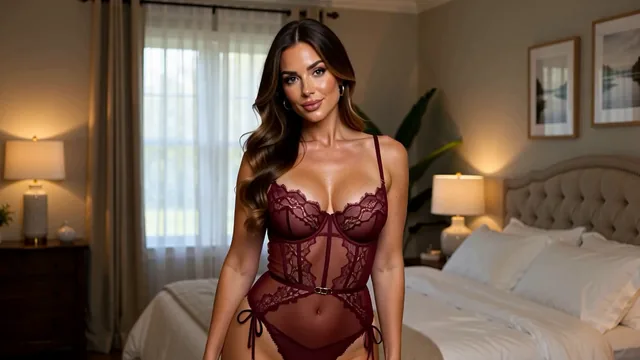
PromptUse the authorized adult fashion still as the source. Keep the subject, pose, clothing, and crop. Reduce background clutter and create cleaner separation around the silhouette with soft neutral light.
Compare the silhouette and clothing edges before changing the pose.
Change the light, keep the frame
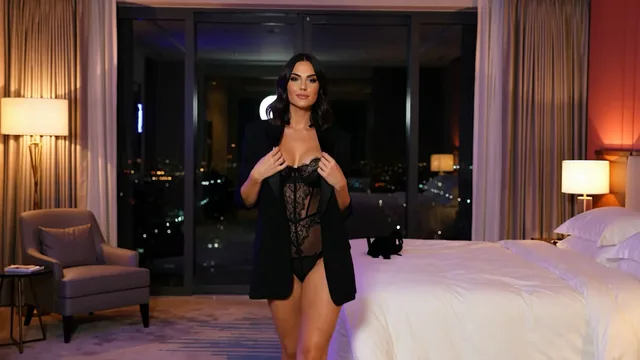
PromptUse the authorized portrait as the source. Preserve the adult subject, medium framing, wardrobe, and window position. Shift the hard side light to a soft violet evening glow without adding new props.
Check whether the lighting changed without moving the face or crop.
Create space for a later frame
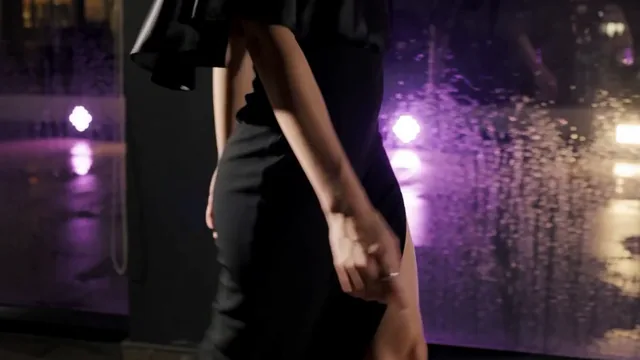
PromptUse the authorized corridor image as the source. Keep the clearly adult model, cobalt clothing, and blue corridor. Extend negative space near the walking direction while keeping the original camera height and body proportion.
Inspect the new crop and floor perspective before using it for motion.
Read the Image to Image estimate
The live Catalog decides which source types, models, and output controls are available. Select the source and edit setup, then compare the complete Credit estimate with your signed-in balance. A demonstration or previous request does not establish the price, resolution, or preservation behavior of the next edit.
| Goal | Focus on | Why it helps |
|---|---|---|
| Make the change easy to verify | One transformation and one preserved feature | A narrow edit gives you a useful side-by-side comparison and a clear next step. |
| Keep the source recognizable | The original crop and subject placement | Stable composition makes unintended changes easier to spot after generation. |
| Plan a later motion workflow | Negative space and aspect ratio | A considered frame can be easier to review before it becomes an authorized Image to Video source. |
| Spend Credits deliberately | Live model and complete estimate | Model availability, source compatibility, and output choices determine the current requirement. |
Keep Image to Image revisions measurable
When an edit misses the target, first decide whether the problem is the source, the requested transformation, or an unintended detail change. Keep two of those factors steady while you revise the third. Review the task status and balance before making another request after a connection issue.
- The output changes more than the requested feature
- Name the subject, crop, and one feature to preserve. Remove new location, pose, and wardrobe instructions from the first edit.
- The edit is too subtle to judge
- Describe the visible difference in concrete terms and compare it side by side with the source at full size.
- The new crop is not useful for the next step
- State the needed negative space and aspect ratio, then keep the subject position stable while revising the composition.
- You are unsure whether to submit again
- A connection or playback error does not confirm that generation failed. Check the existing task in History and its balance before retrying.
Image to Image questions
Practical answers about live settings, Credits, account access, and consent-first creation.
Choose one visible change such as background separation, lighting balance, wardrobe color, or crop. Name one source feature that should remain important. Separate a new pose, location, and camera angle into later requests.
Only when you have the rights and informed consent required for the intended use, and every depicted person is clearly an adult. Unauthorized likenesses, unclear adulthood, non-consensual intimate content, exploitation, and sexual violence are prohibited.
Eligible new registrations receive 25 free sign-up Credits once, subject to anti-abuse checks. Sign in to confirm the actual balance. Compare the complete live estimate for the selected source and edit with your balance; the allowance does not mean unlimited editing.
No exact match is guaranteed because the result is a new generation. Inspect the face, hands, silhouette, clothing, crop, background, text, and logos. A focused prompt can reduce unnecessary changes, but it cannot make preservation deterministic.
You can use a compatible, authorized edited still in a separate Image to Video request. Review the image first, then choose one motion event and check the new model, output controls, and Credit estimate before submitting.
Make the edit small enough to evaluate.
Open the image workflow with an authorized source, state one transformation, and compare the displayed estimate with your available Credits.